Get XPLAN to output documents in a DOCX (XLSX) format
Option 1: Template by template basis (affect all users on the site)
This method can be used to quickly make one template come out as a DOCX (XLSX) format for all users, even if template was uploaded in DOC (XLS) format.
Step 1: Go to the template document that you want to update. This is done by clicking Admin > Site > Templates and then going to the template category the document is in.
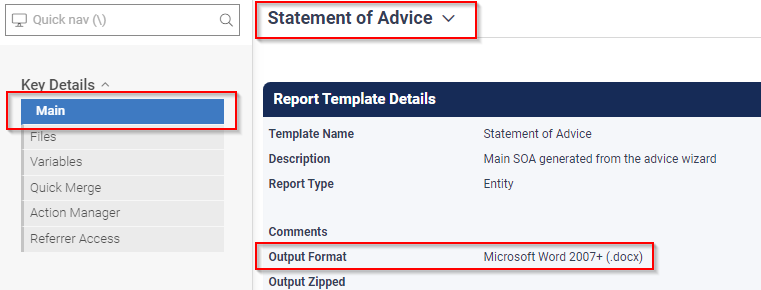
Step 2: Click on the name of the template. On the ‘Main’ page of the Report Template menu, set the ‘Output Format’ to be ‘Microsoft Word 2007+ (.docx)
Option 2: All templates (on user per user basis)
This method can be used to quickly make all documents come out as a DOCX (XLSX) format across all templates for a specific user, even if templates were uploaded in DOC (XLS) format.
Step 1: Ensure that the ‘Output Format’ mentioned in the previous method is set to ‘User Default’ (this is most likely the case)
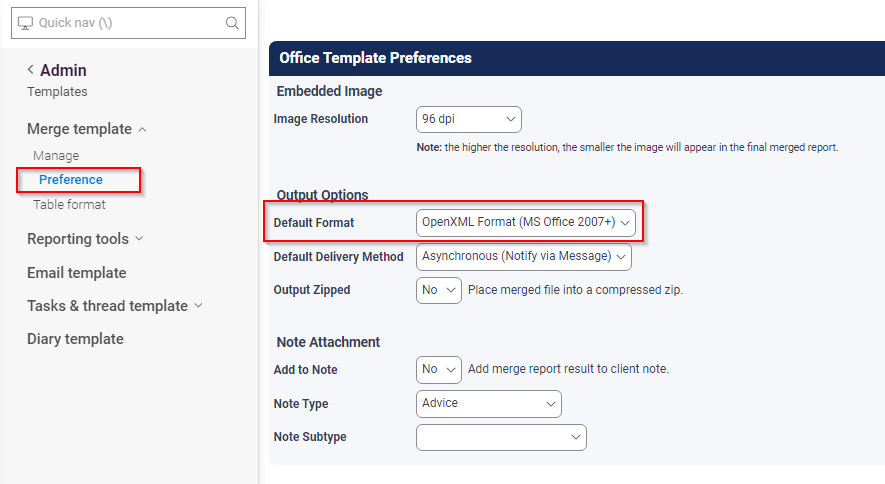
Step 2: Next navigate to Admin > Site > Templates and select ‘Preference’ in the left hand menu under ‘Merge template’.
Step 3: Set the ‘Default Format’ to be ‘OpenXML Format (MS Office 2007+)'
Was this article helpful?
That’s Great!
Thank you for your feedback
Sorry! We couldn't be helpful
Thank you for your feedback
Feedback sent
We appreciate your effort and will try to fix the article